
Running to do list Notion Template: A calm way to manage tasks
If you don’t already have a system for managing your tasks, you probably know how frustrating it is when things keep slipping through the cracks.
It can also be a pain trying to remember where you wrote something down, whether it was in an app, a sticky note, or some random reminder.
And naturally, staying focused and organised becomes harder than it should be.
But don’t worry, the running to do list Notion template will help you stay focused and organised.
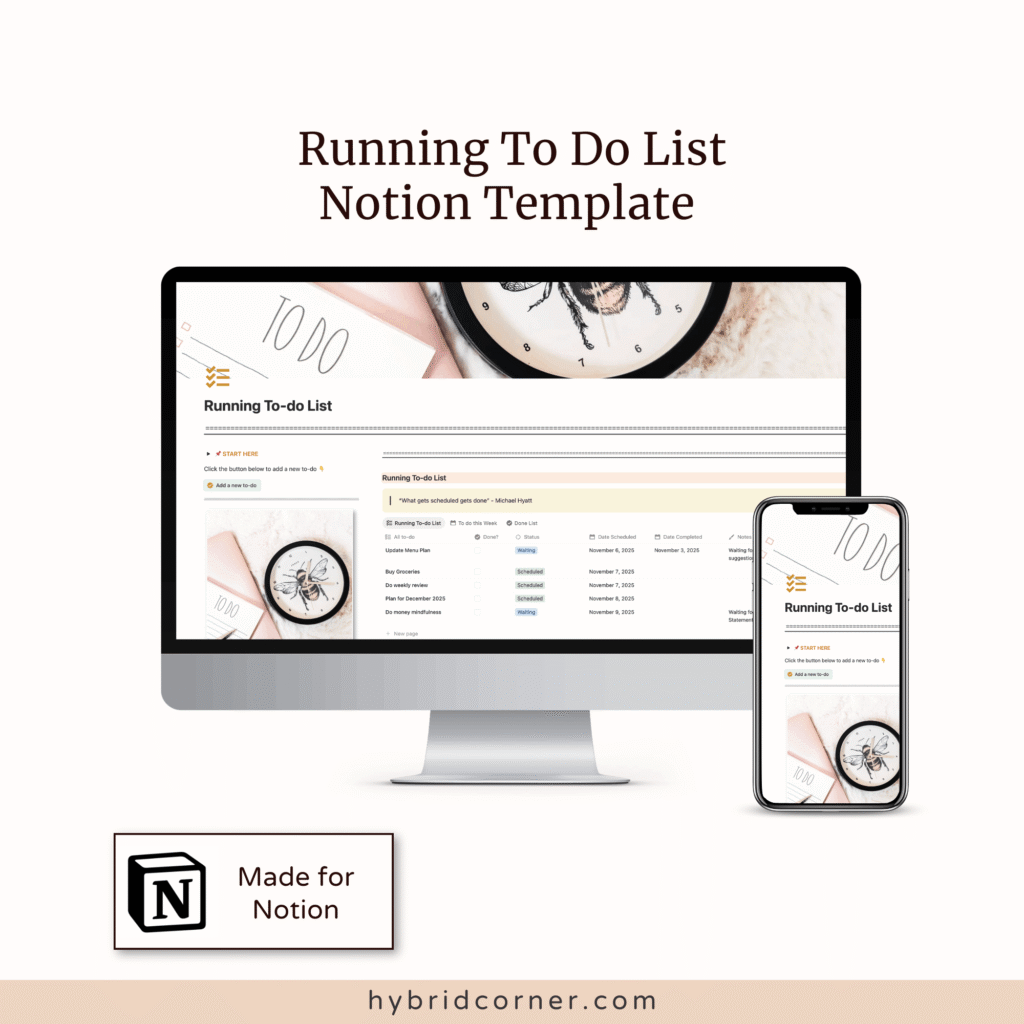
Table of Contents
DISCLOSURE: This post may contain Affiliate Links, which means I receive commission, at no extra cost to you, when you make purchase using those affiliate links. Full Disclaimer is here.
What’s a Running to do list Notion Template?
A running to do list notion template is just one list that you keep adding to, and updating over time.
You don’t have to keep rewriting the same things again and again, and it doesn’t start over every day.
It simply grows with whatever is going on in your life.
This is different from a daily checklist because you’re not wiping it clean each morning.
It’s also not as full on as a complete project management system, so it stays simple and easy to keep up with.
And unlike random notes scattered all over the place, it keeps everything in one spot.
So you only have one place to check when you’re ready to process, or take the next actions after capturing those to-dos.
And unlike random notes scattered all over the place, it keeps everything in one spot.
So you only have one place to check when you’re ready to process, or take the next actions after capturing those to-dos.
How to make this notion template work for you?
This running to do list notion template serves as your one, and only place for all the things you need to do.
The idea is to capture everything that needs action when it pops into your head and drop it into your Notion Running to do List.
Add tasks as they come up so you’re not trying to remember everything later. Then check back in regularly, either daily or weekly, and look at what still needs attention.
It also helps to keep your active tasks easy to see.
That way, you’re not sorting through a huge, messy list every time you open it. Focus on the next thing you actually need to do.
And move old or unneeded tasks out of the way when they are no longer relevant.
This to do list in notion is easy to use and perfect for beginners.
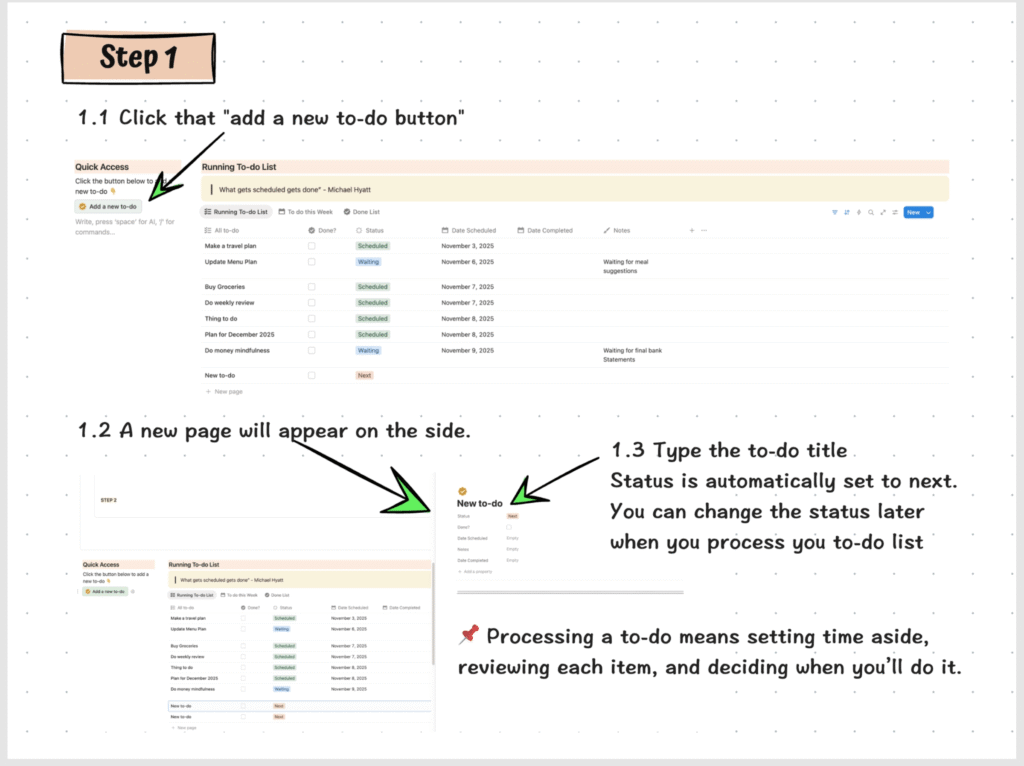
It comes with a detailed text guide on how to use it, with screenshots, just like the image below.
Why I created this template?
I’m an analog person by heart so my first to-do list was in a small pocket notebook.
I switched to Notion because, it made my task management easier to keep up with. I love that I don’t have to re-write things, and I can update things quicker.
Having just one place to put all my to dos makes it also easier to stay focused. Instead of wasting time deciding where things should go and overwhelming myself figuring out the next action, I can just put a to do in the Running to do list space.
Then I make time later (weekend or every few days) to go through them and actually do the next action required.
If you want to stay organised, but you don’t want to spend a lot of time building a system from scratch, this is for you.
This running to do list gives you a simple starting point so you can get organised without overthinking it.
Let me show you what’s inside
This is a free template.
If you don’t have it yet, grab it through button below.
Inside the Running to do list Notion Template
Inside the template, you’ll also find detailed instructions on how to use it, along with screenshots.
And even if you’re a new in Notion, you’ll find it’s easy to follow.
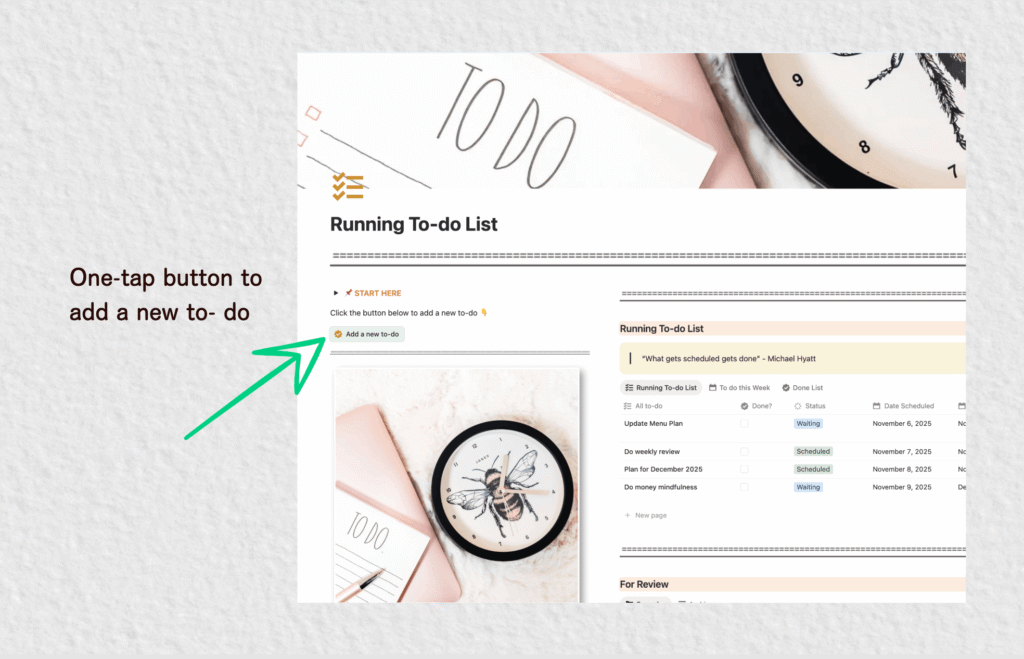
One-tap buttons for quick access
All the tasks you add are collected in one place. They stay there until you are ready to process them.
Processing just means setting aside time to go through your list, and deciding what you want to do with each item. The key is to look at the next action step and follow through.
Designed to make it easy for you
All the tasks you add are collected in running to do list notion template main view.
They stay there until you are ready to process them.
Processing just means setting aside time to go through your list and decide what you want to do with each item. The key is to look at the next action step and follow through.
Running to do list views
The running to do list notion template section has three views:
- Running to do list
- To do this week
- Done list
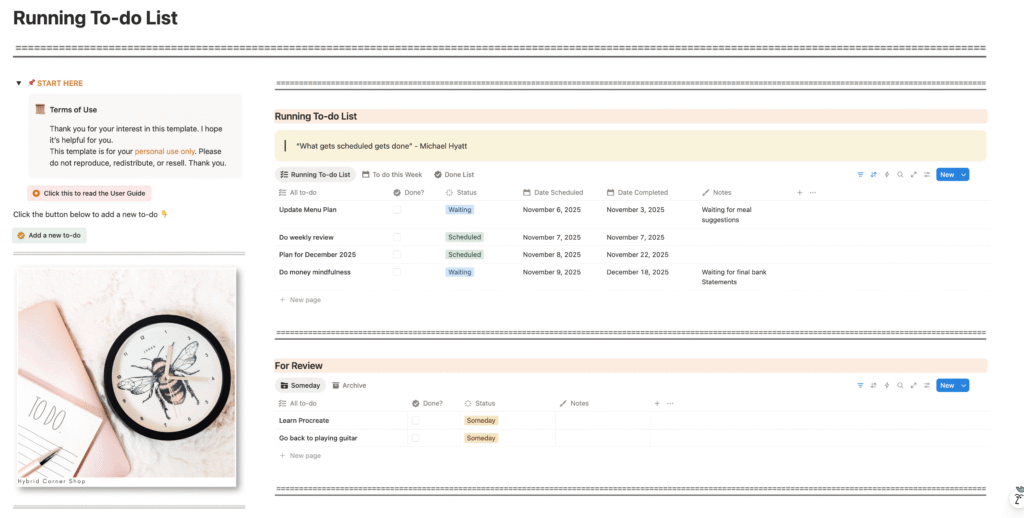
The Running to do list view shows all the unfinished tasks.
After you click Add new task, the to do you captured will show here. It’ll stay here until you tick the checkbox.
When the checkbox is ticked, the task is removed from the Running to do list view and appears in the Done List view.
The To do this week view shows the tasks you scheduled for this week, based on today’s date.
Done Column
The Running to do list has three views.
- Running to do list
- To do this week
- Done list
Running to do list view, shows all the unfinished to dos. After clicking “add new task”, the to do you captured will show here.
It will stay here until you tick the check box.
When the check box (second column) is ticked, the to do item is removed from the “Running to do list” view and shows in the “Done List” view.
“To-do this week” view shows all the to-dos you scheduled “this week” which is relative to “today’s date”.
Status column
The status column helps you decide what you want to do next with each task.
The status options are:
- Next
- Scheduled
- Waiting
- Someday
- Archive
When you add a new task, the status is automatically set to Next.
From there, you only need to decide when to do it.
Once you pick a date, you can change the status from Next to Scheduled.
The Waiting status is for tasks that depend on another person or another step before you can move forward.
Someday and Archive
When you change a task to Someday or Archive, it is removed from the Running to do list views.
Instead, it appears in the separate section just below the running to do list area.
The Someday status is for tasks you want to do, but you’re not sure when you want to do them, or whether you will actually get to them anytime soon.
The Archive status is for tasks you do not want to delete, but still want to keep around in case they matter later.
Wrapping it up
It simple isn’t it?
Now all you have to do is to grab your template and start.
Click the button bellow and get your free notion to do list template.